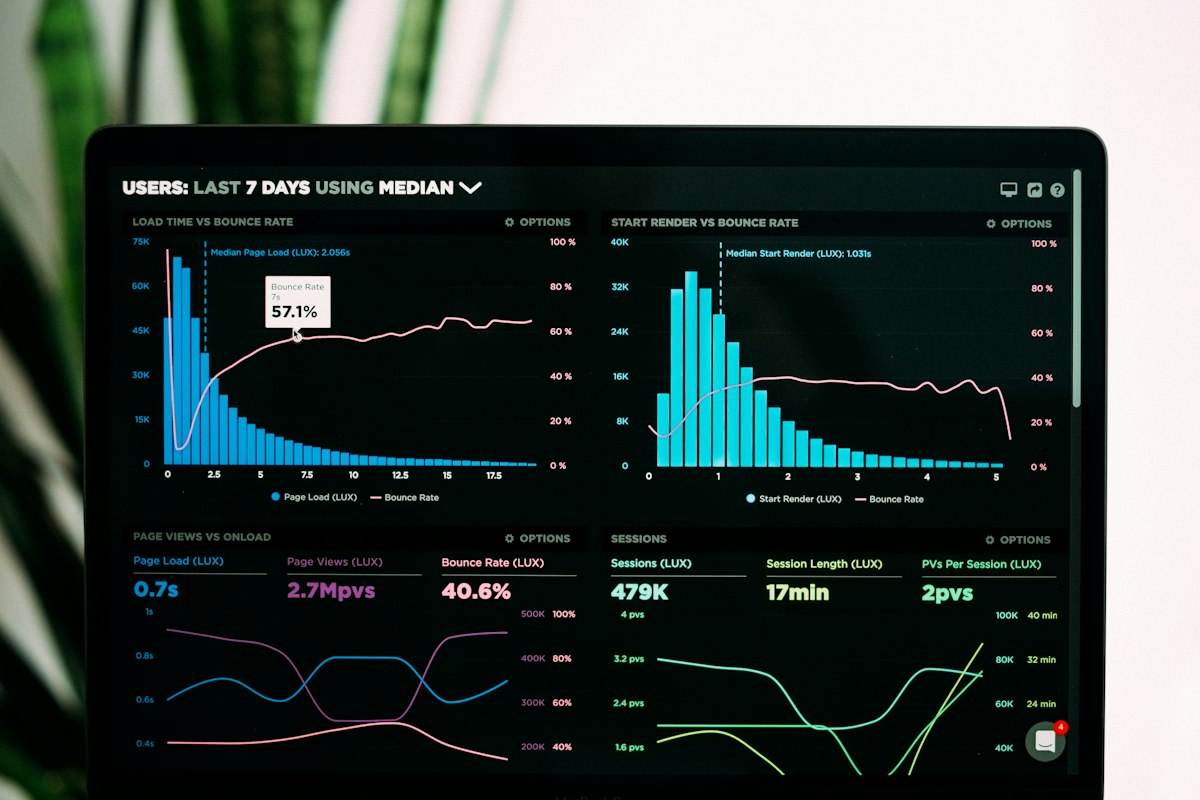
Google Search Console is the most important free SEO tool available. It is Google talking directly to you about your website — showing what it sees, what it has indexed, what queries your pages appear for, and what problems it has found. Every website owner should set it up immediately. Every SEO practitioner should check it weekly. But most people only scratch the surface of what it can tell them.
How do you set up Google Search Console?
Setting up Search Console takes less than 10 minutes:
- Go to search.google.com/search-console and sign in with a Google account
- Click "Add property" and choose "Domain" (covers all versions of your site including www and https)
- Add the TXT record Google gives you to your domain's DNS settings — your hosting control panel or registrar has a DNS section where this goes
- Click Verify — Google confirms the TXT record is live
- Submit your XML sitemap at your domain's sitemap URL (usually yourdomain.com/sitemap.xml)
It takes 24–48 hours for data to start appearing. Within a week you will have enough data to begin using the tool meaningfully.
What does the Performance report show and how do you use it?
The Performance report is the most valuable report in Search Console for most sites. It shows:
- Total clicks — how many times searchers clicked your pages from Google results
- Total impressions — how many times your pages appeared in search results (whether clicked or not)
- Average CTR — clicks divided by impressions — your average click rate across all queries
- Average position — your mean ranking position across all tracked queries
The most actionable use of the Performance report:
- Filter by Pages, sort by Impressions descending — these are your most visible pages
- Look for pages with high impressions but low CTR — these pages are being seen but not clicked. They need better title tags and meta descriptions.
- Filter by Queries, sort by Position, filter position between 8–20 — these near-page-one keywords are your fastest ranking improvement opportunities
- Compare date ranges (last 3 months vs prior 3 months) to identify which pages are trending up or declining
How far back does Google Search Console data go?
Search Console stores 16 months of data. Beyond that it is lost — another reason to connect Search Console immediately even for brand new sites. You cannot see data from before your property was verified.
How do you use the Coverage report to fix indexing problems?
The Coverage report shows which URLs Google has indexed and which are excluded — and critically, why they are excluded. Click on any status type to see the specific pages affected and the reason for exclusion.
The most important Coverage statuses to investigate:
- "Page with redirect" — pages submitting redirects to Google. These should not be in your sitemap — remove them and update to the final destination URL.
- "Indexed, not submitted in sitemap" — pages Google has indexed that are not in your sitemap. Review these to ensure Google is indexing the right pages.
- "Duplicate without user-selected canonical" — Google found duplicate content but no canonical tag telling it which version to prefer. Add canonical tags.
- "Crawled, not indexed" — Google visited the page but chose not to index it. Usually thin content or low quality. Improve or remove the page.
- "Blocked by robots.txt" — you are blocking pages that should be accessible. Check your robots.txt as covered in our guide to robots.txt.
What does the Core Web Vitals report tell you?
The Core Web Vitals report shows your pages' LCP, INP, and CLS scores measured from real Chrome users — field data. As covered in our guide to Core Web Vitals, this field data is what Google uses for ranking. Check the Mobile tab specifically as Google uses mobile performance for mobile-first indexing. Pages in the "Poor" category need priority attention with our speed tool.
How do you use the Links report for SEO?
The Links report shows two categories of links Google has found:
External links — backlinks from other websites. You can see which sites link to you, which of your pages receive the most links, and which anchor texts are most commonly used. This is free backlink data directly from Google. Compare your top linking sites to understand your actual link profile strength.
Internal links — links between your own pages. You can see which of your pages receive the most internal links. Pages receiving very few internal links are often underperforming because they lack the internal equity distribution they need, as covered in our guide to on-page SEO. Use our internal link checker to map and improve this distribution.
What is the Manual Actions report and when should you check it?
The Manual Actions report is essential — check it the moment you set up Search Console and monthly thereafter. A manual action means a human reviewer at Google has determined your site violates their guidelines and has applied a penalty. Manual actions are rare for legitimate sites but catastrophic when they occur — they can remove your site from search results entirely for the affected pages.
Common manual actions include: spammy structured data, unnatural links to your site, unnatural links from your site, and thin content. If you have a manual action, the report explains exactly what was found and what to do to request a reconsideration.
Summary
- Set up Search Console immediately — data accumulates from verification, so early setup preserves historical comparison data
- Performance report: find high-impression/low-CTR pages for title tag fixes; find positions 8–20 for ranking quick wins
- Coverage report: fix indexing errors — duplicate canonicals, thin content, and incorrectly blocked pages
- Core Web Vitals: check mobile field data for pages in the Poor category needing performance fixes
- Links report: free backlink data showing which sites link to you and which pages receive the most internal links
- Manual Actions: check monthly — a manual penalty requires immediate attention
Continue reading: What are Google algorithm updates and how do you survive them?